



Make the Most of the Google Maps JavaScript API: Symbols and Strokeweights
This article shares a practical technique for using the Google Maps JavaScript API to create scalable, performance-friendly visualizations—showing how switching from circle overlays to symbol-based markers simplifies implementation while improving responsiveness and flexibility.

This Google Maps JavaScript API tip comes hot from a Bowdork in the trenches.

Recently, I was working with a supply chain optimizer customer to create a Geospatial Map with the Google Maps JavaScript API to visualize quantities of an item from a specific location. I had initially used Google’s Circle class to display this info, and when we decided we needed these circles to scale with the zoom level of the map, I figured I would do this with the Zoom event. However, it became increasingly difficult to manage the original size and scale when zooming in and out. It also caused some performance issues as I would have to resize any number of these at a time.
After digging through the Google Maps API, I found that this could actually be done by using the Marker class and its ‘icon’ property instead. ‘icon’ lets you add an Icon or a Symbol to the map in place of the default Marker image. Using the Icon class lets you use an image by providing an image URL. The Symbol class asks you provide either a SymbolPath provided by Google or use a custom SVG path notation. Doing either of these allows the marker to resize using the default Marker code and allows the developer to make use of all available Marker events. In my case, I used a Symbol and one of the Maps API’s default SymbolPaths, CIRCLE.
// Snip - we've created a map object above
// Snip - we're looping on an array of items with "quantity"
// properties and setting Marker objects for each item
new google.maps.Marker({
  position: map.getCenter(),
  icon: {
    // Make the shape a nice, clean circle
    path: google.maps.SymbolPath.CIRCLE,
    // Setting the 'scale' to the quantity gives a great
    // visual size indication
    scale: item.quantity
  },
  draggable: false, // they stay where the actual items are!
  map: map,
});
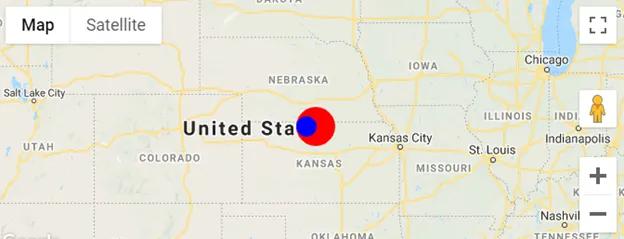
The Symbol property to focus on is ‘scale’. This sets the amount the symbol is scaled in size. In other words, this is how large your symbol will appear on the screen next to others — a perfect way to demonstrate relative quantities visually. By default, this is set to the Symbol’s ‘strokeweight’ property or 1. What I instead did was set the item quantity to the ‘scale’ and let the Marker class do the scaling by default. As an example in the image below, the blue circle is at a scale of 10, while the red circle is at a scale of 20:


One thing to note: If using this, I would recommend any number set for ‘scale’ be under 50 and especially not over 100. Otherwise, you risk some massive performance issues, a struggling component, and a completely blocked map no matter how far you zoom. :)